RoxyBrowser: AI control, MCP integration and headless browsing

Recently, I connected this blog to my own domain, documented domain email and VPS setup, and worked through problems with my desktop AI tools. Much of that work involved a browser: domain administration, email, website previews and project research.
I already have RoxyBrowser installed locally, and its integration configuration was preserved when I repaired Claude Cowork in late September. Two capabilities particularly interest me: AI control and headless browsing. They offer a way to connect environment management, browser operation and individual tasks.
For someone managing several projects, stores or client accounts, the appeal is specific: organize the browser environments first, then add automation gradually.
Referral disclosure: This article contains my RoxyBrowser referral link. I may receive a commission or platform reward when you register or purchase through it. Official information was checked on October 5, 2026. The task flows below are introductory suggestions, without large-scale concurrency or long-term account performance testing.
Explore RoxyBrowser through my referral link. For the automation details, head to the API, MCP and headless sections below.
Where browser environments fit into the work
My previous posts covered Dynadot domains and email and LisaHost experience and VPS setup. I would assign each part a clear job:
| Part | What I want it to handle |
|---|---|
| Domain and email | A website address and a public contact channel |
| VPS and networking | Running services and providing a tested connection |
| Browser environments | Separating projects, login sessions and network settings |
| AI and automation tools | Completing a defined task and returning an inspectable result |
Maintaining my blog, checking a client’s website and testing browser automation can involve different accounts and scopes. I want the name of a workspace to tell me which project it belongs to and what it is for.
That also makes it easier to specify which environment a script or AI assistant should use.
Three capabilities worth looking at
Separate profiles for separate purposes
RoxyBrowser organizes environments into profiles. Its documentation describes separate cookies, local storage, fingerprint parameters and proxy settings, with options including language, time zone, Canvas and WebGL. Official FAQ
For my own organization, I would use names such as BLOG-CONTENT, CLIENT-DEMO and AUTOMATION-TEST. These are examples; one or two may be enough to start.
A useful name tells me which account and pages belong in that window. Generic names such as “Window 1” become harder to distinguish as the work grows.
Collaboration with clear responsibilities
The official team documentation describes separate team data, member permissions and an activity log that can be filtered by member, module or time. Team documentation
For a small team, I would first define ownership and the handover scope. Then I would test one handover: can a colleague find the right environment and complete their task, and can the owner locate the corresponding record? That gives a practical basis for deciding whether to move more work into the tool.
API and MCP integration
This is the part most closely connected to my recent AI tooling work. The “API & AI MCP” page in my local client provides integration configuration. RoxyBrowser documents a local API that can work with Selenium, Puppeteer and Playwright, and maintains a public MCP project. API documentation, official MCP repository
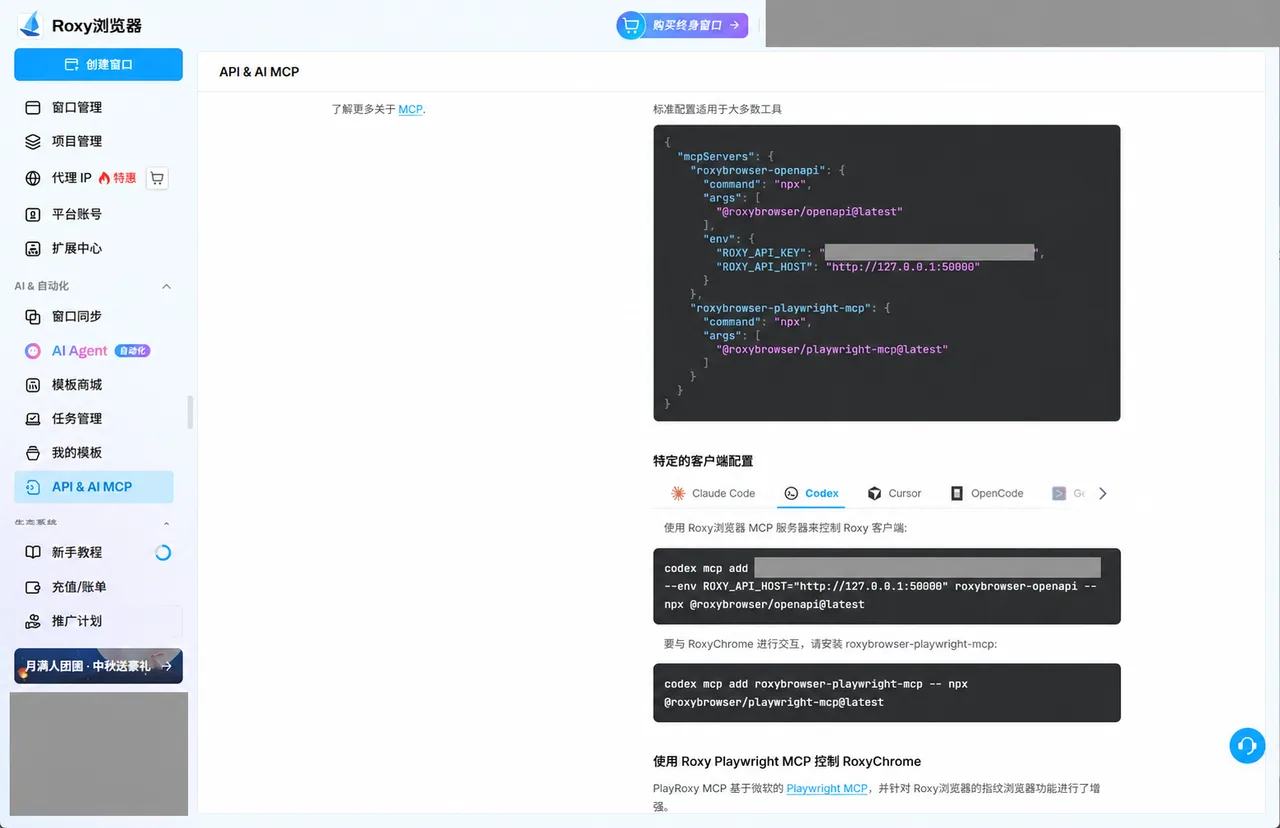
The page presents two complementary integrations: environment management through RoxyBrowser, and page interaction through Playwright MCP. That distinction helps identify whether a task is blocked on opening an environment or on the subsequent page operations.
The workflow I want to explore is:
Describe a task → call an available tool → open the specified environment → perform the task → return the result.
For example, a dedicated test environment could be used to check article titles, links and language switching on my blog, then produce a list of problems to review manually.
I suggest checking the connection in three stages: list the available tools, open the specified environment, then complete one page task. This makes it easier to locate a failure in the connection, profile launch or page interaction.
Headless browsing for repeatable tasks
Headless browsing runs the browser without displaying a visible window, with software controlling the page. It can be useful for scheduled checks, repeated screenshots and reading information from your own website without filling the desktop with windows.
RoxyBrowser’s official POST /browser/open documentation includes a headless parameter. The following request-body example opens an existing profile; replace both IDs with your actual values and configure the address and authentication according to the API documentation. Open-browser endpoint
1 | { |
The parameter selects how the browser starts. Checking links, entering content or taking screenshots still requires the corresponding script or AI tool.
For blog maintenance, I would first verify the article and language-switching steps in a visible window. Once those steps work, I would try repeating the checks headlessly and saving page URLs, screenshots or errors. This is a suggested sequence; initial login and interactive verification are easier to handle visibly.
A headless browser still consumes resources and needs a working network connection. Before scheduling a recurring task, I would record the duration, output and any failure from a complete run.
Start with two profiles and one small task
At the time of checking, the official pricing page listed a free tier with two profiles. That offers a starting point for testing the basics. Check API access, member allowances and paid options separately in the current plan details.
Here is the trial I would run:
- Create two clearly named environments. Use one for research and another for your own test pages. Get comfortable with naming, notes, closing and reopening them.
- Check the actual network connection. The creation screen offers no proxy, a custom proxy or a saved proxy. Choosing no proxy uses the current local network; creating a profile does not itself supply another network connection. Profile creation guide
- Check session behavior with your own test accounts. Close and reopen the environments, and confirm that saved sessions behave as expected and the windows remain easy to identify.
- Complete a task you can check manually. Inspect a few links on your own website, record the results and verify them yourself.
Unless a task requires specific settings, I would start with automatic or default fingerprint options. The official getting-started guide also recommends that approach to reduce inconsistent system, engine and fingerprint settings. Configuration guidance
My decision would come down to three questions: is it easier to find the correct environment, does reopening it behave as expected, and can the same small task be repeated? More profiles and collaborators can follow once those basics work.
Give the AI integration a concrete first task
To use the API, enable it in the RoxyBrowser client and configure the actual host and key. The documented default local address is http://127.0.0.1:50000, requests require a token header, and request limits depend on the plan. API setup
For MCP installation, follow the current official README. The project is evolving, so package names, tool names and configuration copied from older tutorials may differ. Keep the real API key in your own configuration and use a placeholder when sharing notes.
After connecting and checking the available tools, a first task could be:
Use the
AUTOMATION-TESTenvironment to open my blog. Check the latest article’s title and destination link, then inspect its English counterpart. Return the results with page URLs that help locate any problems. This task is limited to browsing and inspection.
This is a proposed trial, with a clear target and an output that is easy to review. It can also reveal which additional browser operation tools are needed. Publishing content or changing account settings would need checks appropriate to those specific tasks.
Who should consider a trial?
RoxyBrowser is worth evaluating if you manage several authorized brand, store or client accounts, hand environments over to colleagues, or want to connect repetitive browser work to scripts.
If all you need is to separate personal and work browsing, first check whether your existing browser profiles already cover that need. Another tool should solve a concrete problem that justifies maintaining it.
One limit matters: a fingerprint browser cannot guarantee that an account will avoid suspension. RoxyBrowser’s own FAQ acknowledges that platforms also consider behavior and transaction patterns. I would evaluate environment organization, collaboration and repeatable task execution. Official FAQ on account restrictions
My referral link and a suggested trial
To explore the product and register, use my dedicated referral link:
Try RoxyBrowser through Jayln3’s referral link
I suggest completing one small task within your available free allowance before evaluating paid features:
- Check current plans for profile, member and API allowances.
- Read the documentation for the configuration relevant to your task.
Working on my domain, email, VPS and desktop AI tools has made me pay closer attention to where each tool fits and how to verify that it helps. RoxyBrowser offers a place to explore the browser-environment part of that workflow before adding more automation.
If you are organizing RoxyBrowser, MCP or browser workflows for cross-border projects, use the Lark contact entry below and mention “Roxy workflow.” Bring one concrete task so we can start with a small, understandable process.